
You can use your assessment link to answer assigned questions and confirm that your response was recorded. If the assessment is no longer open, you can still check whether your answers were submitted and view results when available.
Step by step
- Open the assessment you were assigned and select Answer.
- If you can answer the assessment, complete the questions in the form and submit your answers.
- After submission, confirm you reached the Answers Submitted confirmation screen.
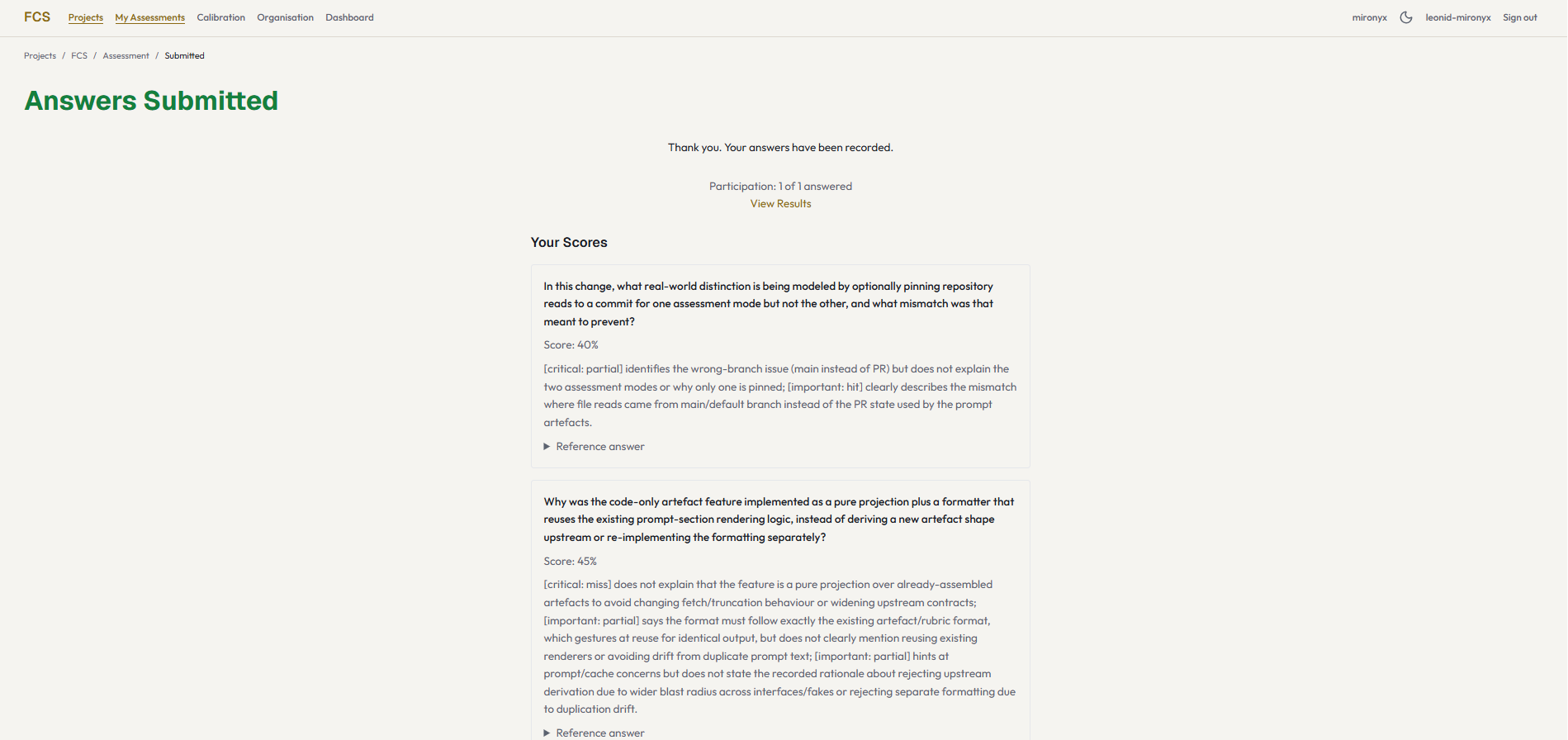
- Use View Results if you want to review the assessment results next.
- If you return to your assessment list instead, select Back to My Assessments.

Good to know
If you see Access Denied, you are not a participant on that assessment. Assessments are assigned to participants; if you expected access, ask your admin to check your participation.
If an assessment has already been completed, you can still submit answers, but your submission will be recorded as late and included in the results.