
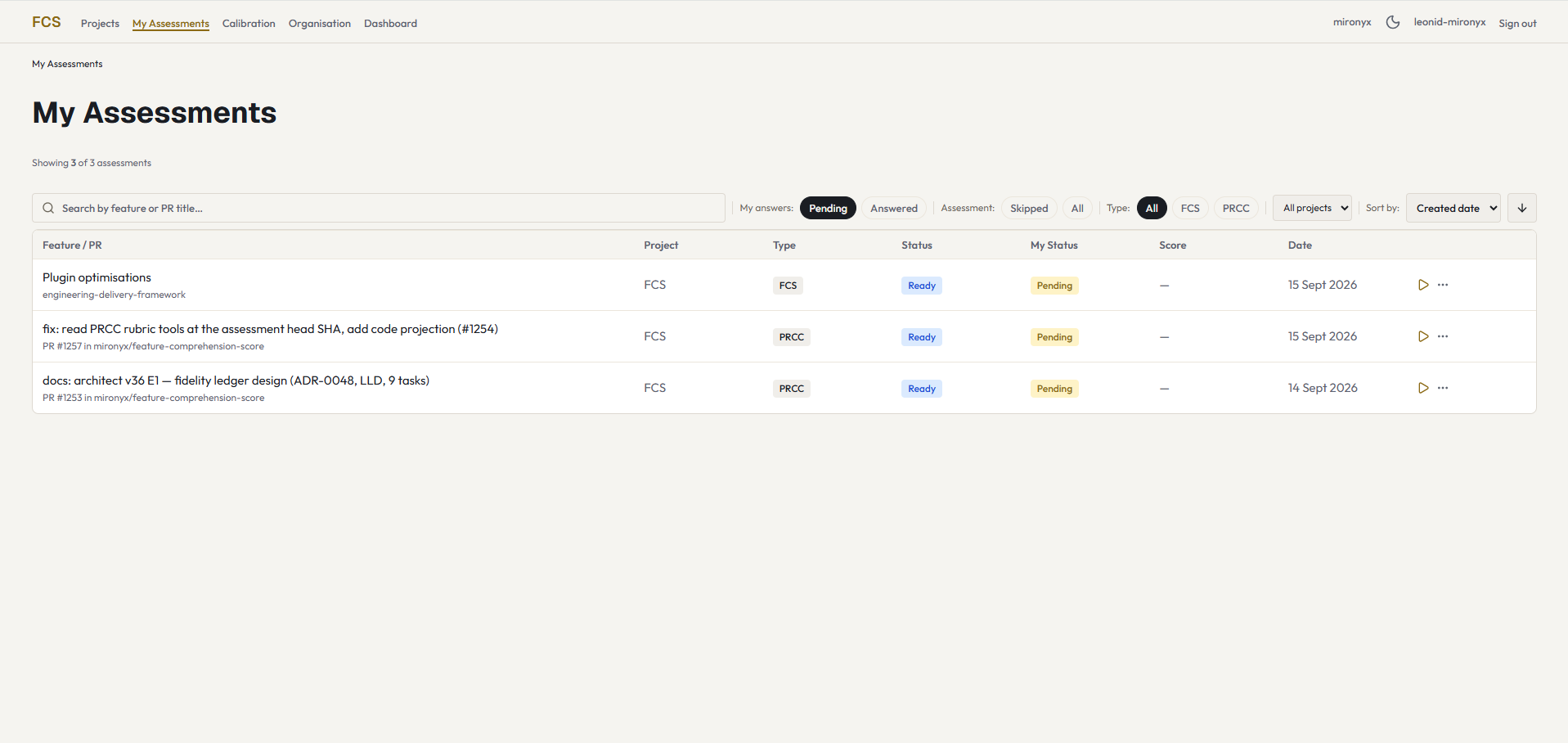
Sign in to FCS, choose the right organisation if you belong to more than one, and open My Assessments so you can start working from your assigned assessment queue.

Step by step
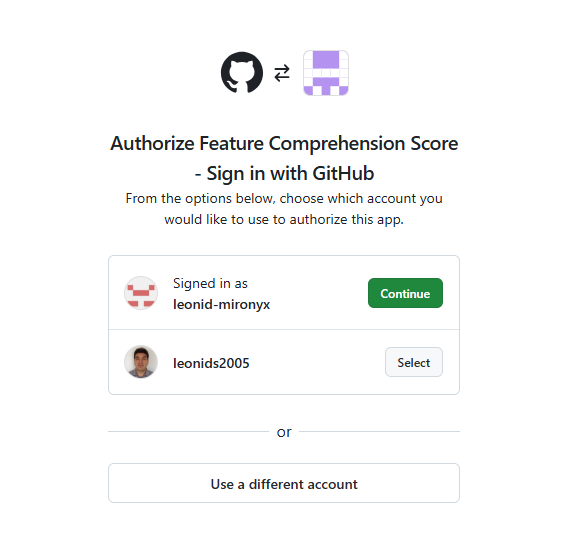
- Open FCS and select Sign in with GitHub.
- If you are asked to choose an organisation, select the organisation you want to work in from Select Organisation.
- After you select an organisation, continue to My Assessments from the main navigation if you are not taken there automatically.
- Start from My Assessments to see the assessments currently assigned to you.


Good to know
- If you belong to only one organisation, FCS selects it for you and takes you straight to My Assessments.
- If FCS opens in the wrong organisation, go back to Select Organisation and choose the organisation you want to use before continuing.
- If My Assessments is empty, assessments have not been assigned to you yet. Ask a project administrator to assign one.
- If sign-in fails, FCS may show one of these messages: Sign-in failed: missing authorisation code., Sign-in failed: could not exchange code for session., or Sign-in failed.