
You can complete assigned assessments from My Assessments and confirm that your answers were recorded. If an assessment is not ready or you no longer have access, you can also tell which message to look for and what to do next.
Step by step
- Open My Assessments from the top navigation.
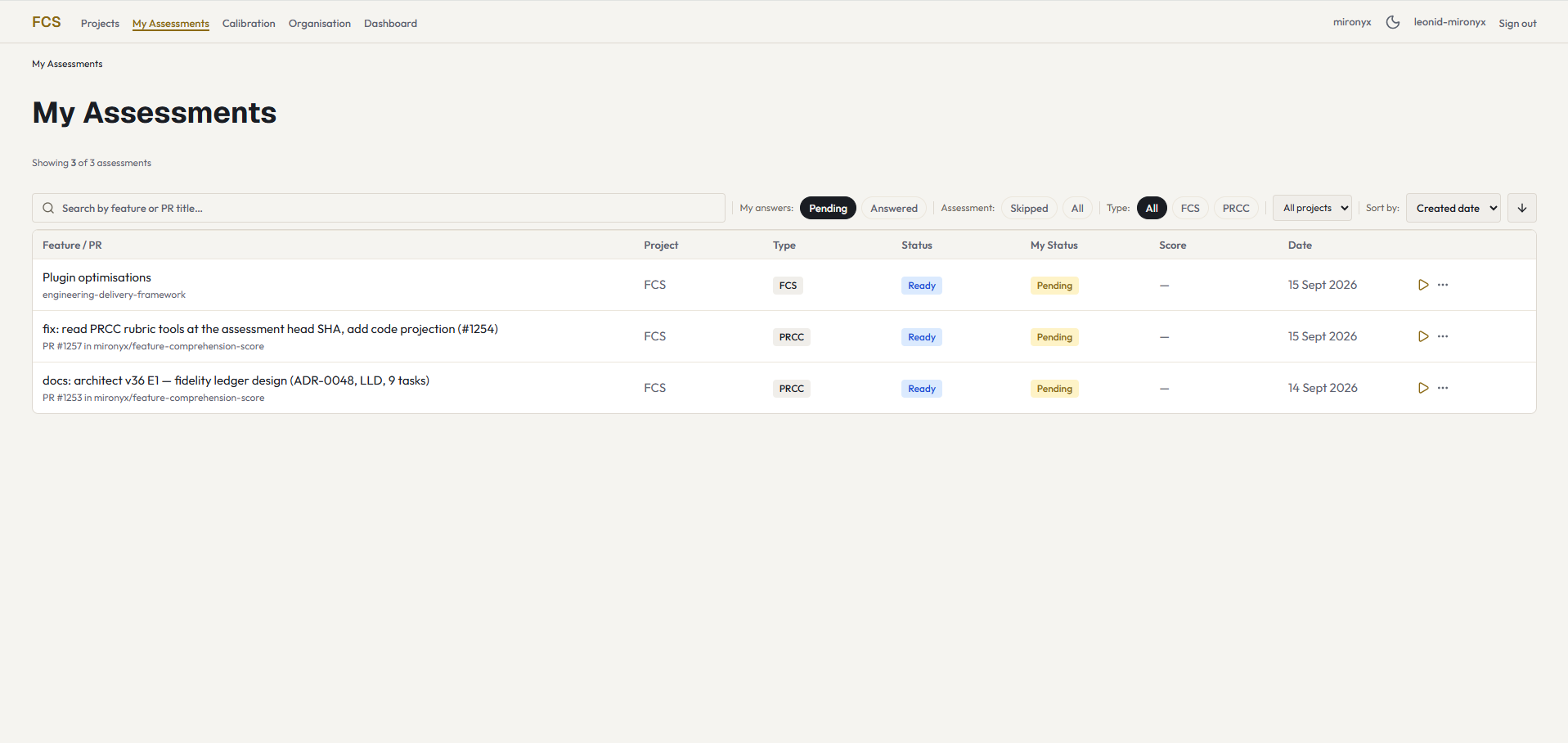
- Open the assessment you need to complete from My Assessments.
If you do not see the assessment you need, switch to Completed to review past activity, or clear any filters that may be hiding it.
- In the assessment, select Answer to open the questions.
If you are returned to results instead of the answer form, your participation has already been recorded for that assessment.
- Complete the questions and submit your answers.
If you previously started the assessment, your earlier answers are filled in when you return.
- Confirm submission on the success page.
Your answers were received if you see the heading Answers Submitted and the message Thank you. Your answers have been recorded.
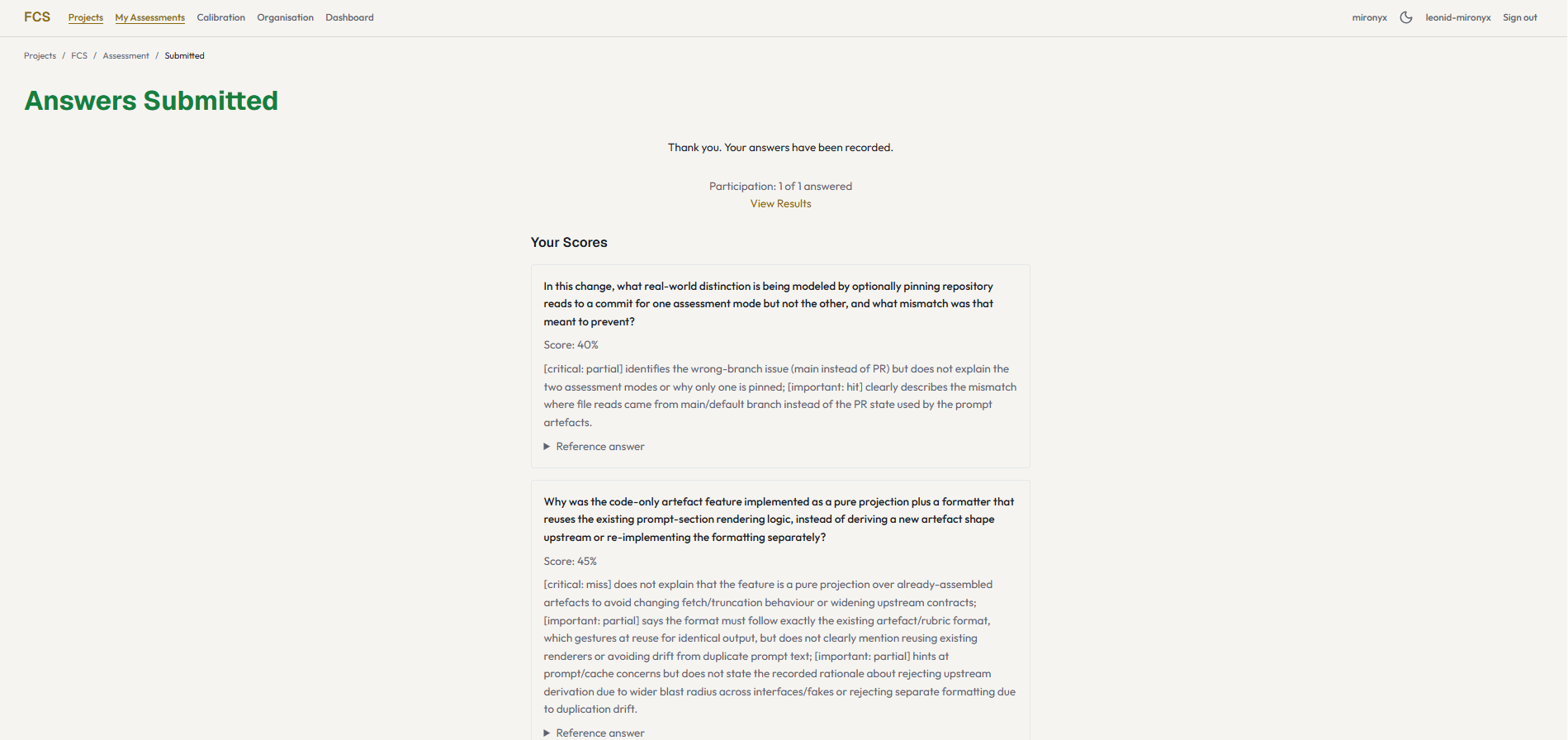
- Choose what to do next:
- Select View Results to open the assessment results.
- Select Back to My Assessments to return to your queue.


Good to know
Assessments appear in My Assessments only after they are assigned to you. If your list is empty, ask a project administrator to assign you.
If you cannot answer an assessment, the product shows a specific state: Assessment In Progress means the questions are still being generated, Assessment Unavailable means generation failed and an admin needs to retry, and Access Denied means you are not a participant on that assessment.