
You can use Calibration to compare how confident you felt about your answers with how well those answers actually scored. This helps you see whether you tend to be Over-confident, Under-confident, or Well calibrated across your completed assessment answers.
Step by step
- Open Calibration from the navigation bar.
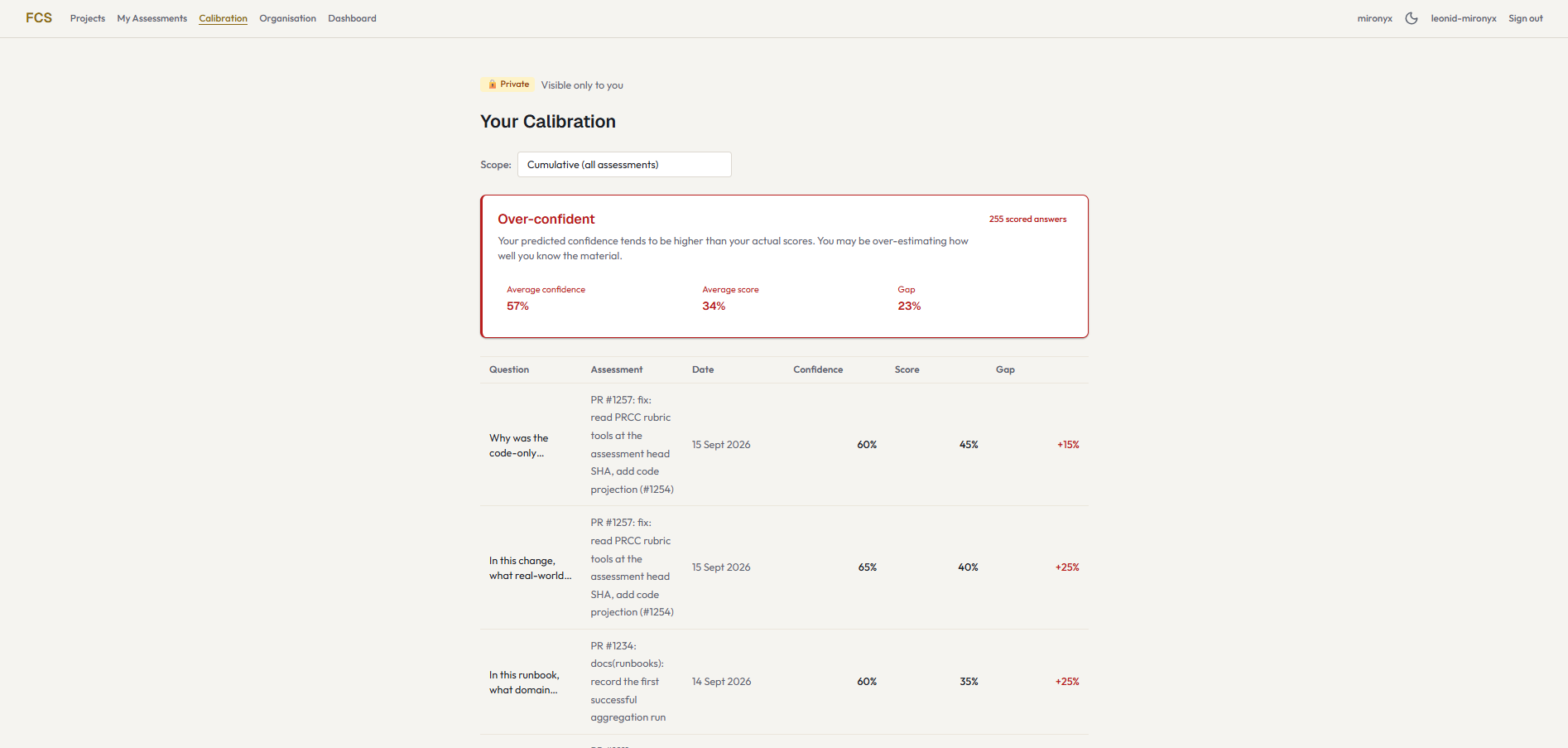
- Review your calibration verdict:
- Over-confident means your confidence was higher than your scored results.
- Under-confident means your confidence was lower than your scored results.
- Well calibrated means your confidence and scored results were closely aligned.
- If you want to focus on one assessment, use the assessment scope switcher on the Calibration page.
- Choose Cumulative (all assessments) to review your overall track record.
- Choose a specific assessment to see calibration for that assessment only.
- If you want more reliable calibration feedback, complete more scored answers across assessments before drawing conclusions.

Calibration only uses your own answers. It does not use another participant's data, and it is tied to your signed-in account.
Good to know
- You need at least 3 scored answers before Calibration can produce a verdict. If you have fewer than 3, you will see a not-enough-data message instead of Over-confident, Under-confident, or Well calibrated.
- If you are not signed in, opening Calibration sends you to sign in first.